

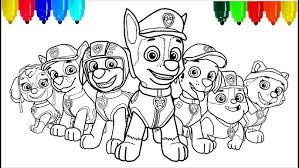
If your child enjoys the adventures of Chase, Skye, Marshall, Rocky, Rubble, and the rest of the Paw Patrol team, then giving them paw patrol coloring pages to print at home can turn any ordinary day into a fun and creative one. But to make kids happy, the pages must print clearly, with clean outlines and sharp details. Many parents struggle with blurry prints, dark lines, low resolution, or pages that look stretched. Printing high-quality coloring pages is not difficult, but it does require the right steps. This guide explains every detail you need to know so you can print perfect Paw Patrol coloring pages at home, school, or anywhere you use a printer.
The goal of this article is to help you understand how to select the right files, choose the best print settings, use the correct paper types, and avoid the common mistakes that lead to poor results. Whether you have a basic home printer or a professional school printer, these tips will help you get clean, bright, sharp prints every time.
Why High-Quality Printing Matters for Kids
Printing a coloring page may seem like a small thing, but quality makes a big difference for children.
Better Lines Lead to Better Coloring
When the outlines are sharp and clean, kids can color comfortably without struggling to stay inside the lines.
Kids Feel Proud of Their Work
Children take pride in neat coloring pages. Clear prints help them feel excited about their artwork.
Learning Becomes Easier
When pictures are clean, children learn:
color recognition
shape recognition
fine motor control
visual understanding
Saves Time and Ink
Low-quality prints waste ink and paper. A good print setting avoids repeated printing.
Understanding Image Quality Before Printing
Before pressing “Print,” it helps to know what makes an image clear or blurry. Most Paw Patrol coloring pages online come in different resolutions and file types.
Image Resolution
High-resolution images have more detail.
Low-resolution images look grainy.
A good coloring page should be at least 1000 pixels wide.
If it is smaller, it may print blurry.
File Types
You will usually see three types:
PNG
Sharp edges
Good for coloring pages
Supports high quality
Recommended for printing
JPEG / JPG
Good quality
Can lose detail if compressed
Still acceptable for printing
Best for professional-quality prints
Great for teachers
Keeps lines sharp
Never stretches or loses clarity
If the lines look fuzzy on your screen, the print will also be fuzzy. Always zoom in before printing.
How to Choose the Best Paw Patrol Coloring Pages for Printing
Choosing the right page matters more than the printer itself. Good pages give you good results.
Look for Bold Lines
Thicker lines print cleaner and help younger children stay inside the borders.
Avoid Low-Quality Scans
Some websites offer scanned pages from printed books. These often have shadows, faded lines, or uneven edges.
Prefer White Backgrounds
White backgrounds save ink and make the outlines more visible.
Check for Complete Characters
Avoid images that are cut off at the edges. Characters should fit comfortably inside the page.
Download the Full-Size Image
Always click the image to open it fully. Downloading thumbnails results in blurry prints.
Step-by-Step Guide: How to Print Paw Patrol Coloring Pages at Home
Here is the simplest and most reliable way to print high-quality coloring pages at home.
Step 1: Download the Image Properly
Never print directly from your internet browser.
Browsers reduce image quality.
Always download the file first.
Then open it from your device.
Step 2: Open the File in a Preview Tool
Use one of these:
Windows Photo Viewer
Mac Preview
Adobe Reader (for PDFs)
These tools show the image clearly and help you adjust settings.
Step 3: Choose the Right Paper
Your choice of paper affects how the print looks.
Standard Printer Paper (Best for Crayons)
Simple
Affordable
Perfect for everyday coloring
Thick Paper or Cardstock (Best for Markers)
Prevents bleeding
Makes pages stronger
Great for hanging artwork on walls
Smooth Bright-White Paper
Makes lines crisp
Improves contrast
Helps younger children see outlines better
Step 4: Adjust Printer Settings
This is the most important step for high-quality prints.
Open your print settings and choose:
Best or High Quality Mode
Do not use Draft Mode.
Draft mode prints thin, light, and unclear lines.
Black and White or Grayscale
Coloring pages do not need colored ink.
Grayscale gives the cleanest outlines.
Fit to Page
Prevents lines from getting cut.
Keeps the image centered and sharp.
Borderless Printing (Optional)
Removes white margins.
Useful for some character pages.
Step 5: Print a Test Page
Before printing many pages, print one test page.
Check the following:
Are the lines clear?
Is the image centered?
Did any edges get cut off?
Is the page too light or too dark?
Adjust settings if needed.

Advanced Tips for the Best Quality Prints
If you want even cleaner, sharper pages, try these advanced methods.
Use PDF Versions Whenever Possible
PDF pages always print cleaner than image files.
They do not stretch or lose resolution.
Teachers prefer PDFs because:
The lines stay sharp
The file prints the same on all printers
Multiple pages can be printed at once
Clean Your Printer Heads
If your lines look broken or faded, your printer heads might need cleaning.
Use your printer’s “Clean Printhead” option.
Use High-Quality Ink
Ink quality affects line clarity.
Cheap ink fades quickly and may smear.
Print in Portrait Mode for Most Pages
Paw Patrol characters look best in portrait mode.
Landscape may stretch the picture.
Avoid Enlarging Small Images
If you enlarge a small image, it becomes blurry.
Always download the largest version available.
How Teachers Can Print Paw Patrol Pages in Bulk
Teachers often need large amounts of coloring pages for the whole class. Here’s the simplest method.
Download All Files First
Do not print directly from the website.
Place Them in One Folder
Name it: Paw Patrol Print Pack
Open PDF Files
Combine multiple pages into one PDF for fast printing.
Use Double-Check Preview
Make sure all pages look consistent.
Use a Laser Printer (If Available)
Laser printers give sharper lines for classroom use.

How to Avoid Common Printing Problems
Many problems are easy to fix once you know what causes them.
Blurry Lines
Caused by low-resolution images or a printer set to Draft Mode.
Too Light or Too Dark
Adjust Grayscale settings
Choose Best Quality mode
Cropped Characters
Turn on Fit to Page
Uneven Borders
Try the Borderless Printing option
Grainy Lines
Try using PDF versions instead of JPGs
How to Store Printed Coloring Pages
To keep things organized:
Use a folder labeled Paw Patrol Coloring Pages
Sort by character
Include date or theme
Place finished pages in a separate folder
Kids enjoy flipping through their own collection.
How to Make Printed Pages Last Longer
If kids want to keep their artwork:
Print on thicker paper
Laminate the final artwork
Use plastic sleeves
Clip pages onto a string to hang on the wall
These methods make kids feel proud of their work.
Why Kids Prefer Clean, Sharp Coloring Pages
Children enjoy pages that:
They are easy to see
have strong outlines
show their favorite characters clearly
Sharp pages help them stay focused, feel confident, and enjoy the activity more.
Conclusion
Printing Paw Patrol coloring pages in high quality is simple when you understand the right steps. By choosing the right file, using good paper, adjusting print settings, and avoiding common mistakes, you can create clean, clear, sharp pages that kids will love coloring. Whether for home projects, classroom activities, or quiet weekend fun, high-quality prints help children enjoy their favorite Paw Patrol characters even more. If you ever want more unique, creative, and clear printable designs for your kids, you can explore Sketchy Tones for new pages that are perfect for printing and learning activities.
